Key Takeaways
- AI overviews in Google searches are designed to make answering faster, but they can produce confusing or obscure results that you really want.
- How to limit or turn off AI Overviews with the ‘Web’ filter, browser extensions, custom ad-blockers, and search operators on desktop and mobile.
- By tweaking your search settings and exploring other search engines, you can take control of your browsing experience, particularly if classic results are your thing.
- Since AI features can impede page speed, remember to keep an eye on your performance and tweak your settings to keep things quick.
- Google stores data during AI conversations, so it is crucial to periodically review your privacy settings and understand profile building when you want to safeguard your information.
- User feedback and engagement are a big part of how search engine features evolve, so by sharing your experience, you can help build a better, more human-centric search experience.
Many users — especially in the U.S. — prefer the classic Google search page with straightforward web links instead of AI-generated summaries. With Google constantly updating its search experience, these AI Overview features can appear or change without notice, making it tricky to keep your results clean and simple.
In this article, we’ll show you how to turn off or minimize Google’s AI Overview, explore the settings that control it, and share practical tips for getting back to a more traditional search experience.
Understanding AI Overviews
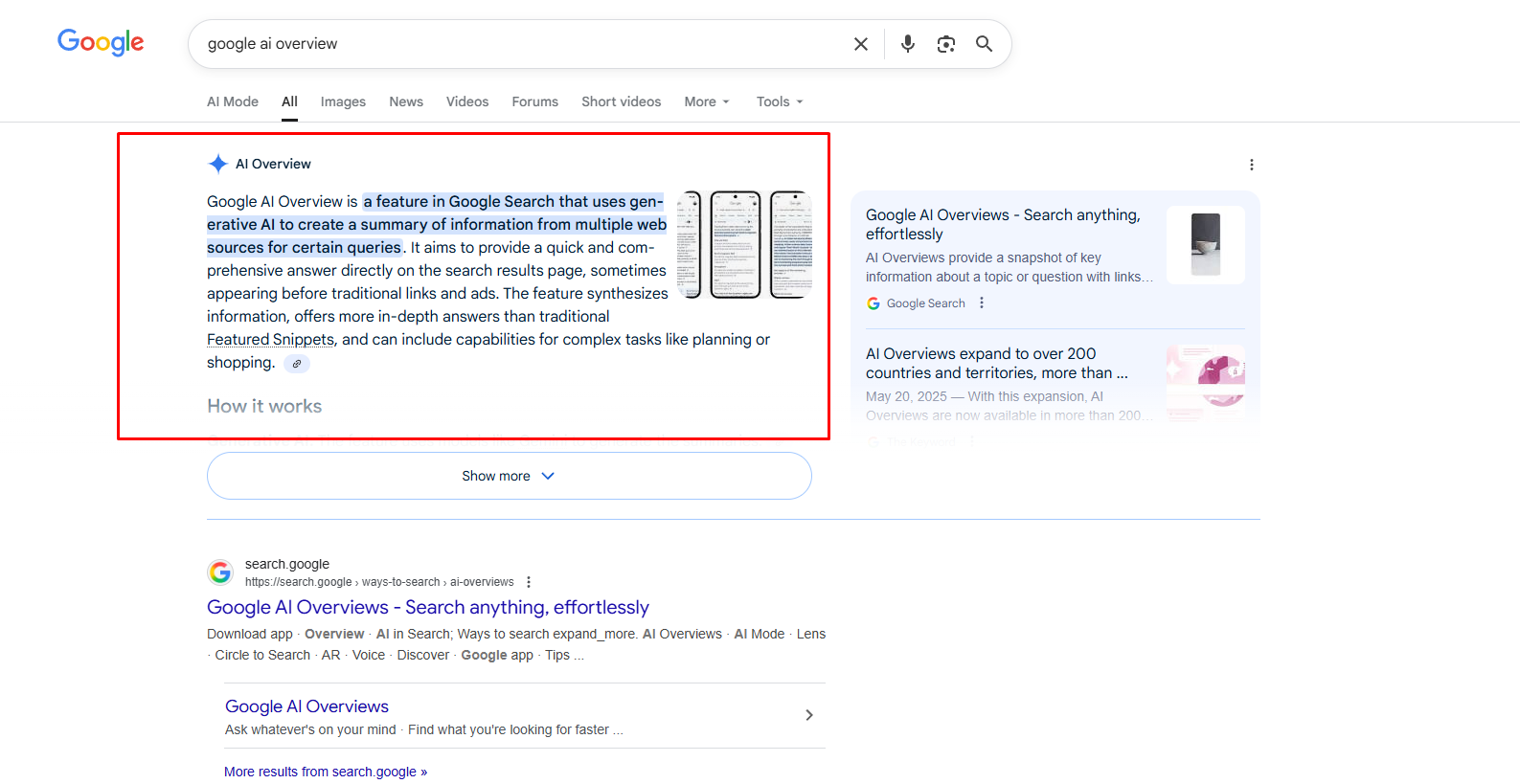
AI overviews in Google search are designed to accelerate things for people seeking information through alternative search engines. These digests leverage machine intelligence to sift the web and display what they believe is most important. While some folks dig them for quick hits, others crave that ancient, traditional search goodness, making the understanding of these tools vital for SEO pros and marketers to make better choices for their sites.
| Benefits | Challenges |
|---|---|
| Quick answers to basic questions | Can cause confusion or incomplete answers |
| Helps compare options easily | May overshadow organic results |
| Summarizes complex info | Distracts from deeper sources |
| Boosts user convenience | Not always accurate or helpful |
The Purpose

AI Overviews are designed to provide direct responses at the top of the page. They’re like a cheat sheet, sparing readers from clicking through a million links just to get the fundamentals. The AI crawls tons of sites, selects what’s most relevant, and presents it in a concise summary.
Less time digging means more time eating. For busy Americans, that pace counts. For the rest of us who want to verify sources or do some deep digging, that old-school links list remains priceless.
The Problem
Not everyone is on board with Google’s AI Overviews — and for good reason. Many users don’t trust a machine to decide what the “best” answer is.
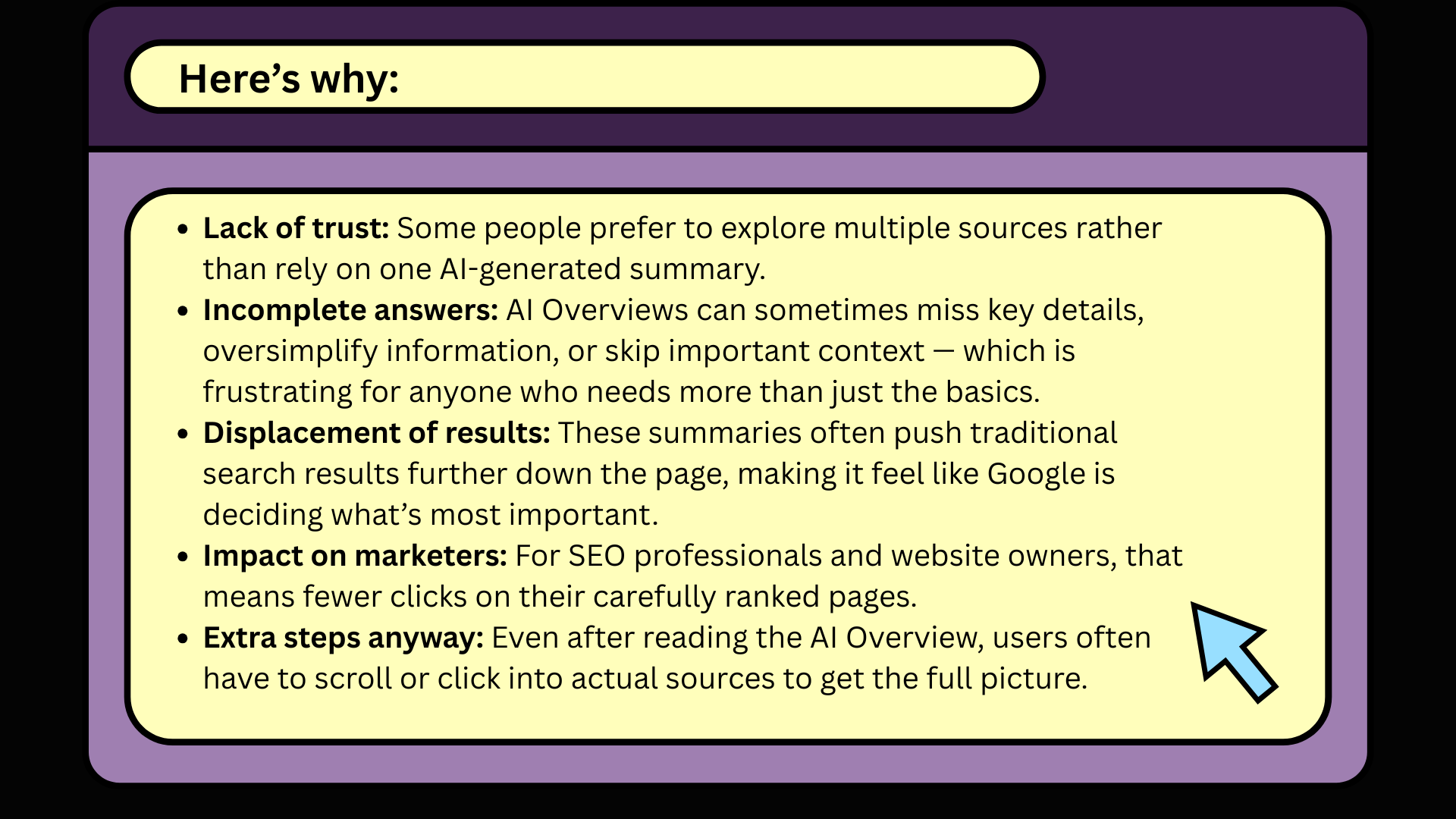
In short, while AI Overviews are meant to simplify search, they sometimes do the opposite — leaving users (and marketers) feeling like they’ve lost control of the search experience.
The Pushback
More users demand options regarding the amount of AI tools to which they are exposed through search. We’ve heard increasing discussion around allowing users to disable AI Overviews or choose their timing. Feedback from searchers has forced Google to reevaluate how and when these summaries show up in their search results.

Communities and forums abound with tales of individuals seeking to use alternative search engines or troll over to engines that don’t utilize AI the same way. Some employ site controls such as nosnippet or noindex to restrict what AI extracts from their pages.
Some optimize their content to be discoverable, transparent, and useful, ensuring it performs well regardless of AI developments. At the end of the day, it’s about keeping the user in the driver’s seat, whether that’s white-knuckling it with AI Overviews or reverting to first principles.
Disable AI Overviews
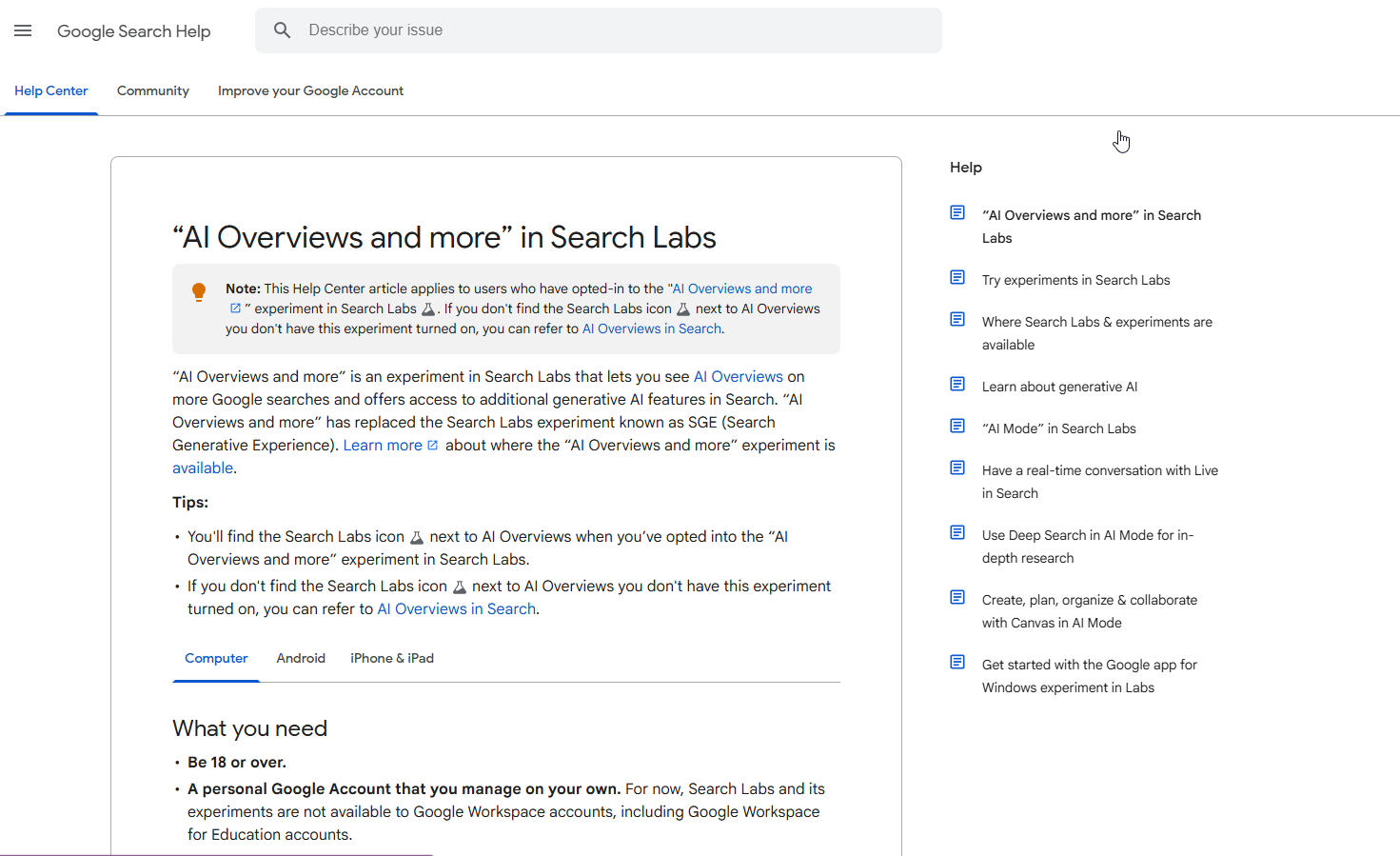
AI Overviews on Google can be annoying for some, especially if you work in SEO or digital marketing and just want fast, straight-to-the-point results. It’s not easy to turn these summaries off, but there are a few things you can attempt. Most techniques require a technical ability, such as installing browser extensions or modifying custom searches.
If you want to keep your searches focused and skip AI-generated summaries, check out the checklist below:
- Use browser filters or settings that limit AI features.
- Put on extensions or ad-blockers that specifically target AI Overview sections.
- Experiment with alternate search operators or sequences of characters upfront in queries.
- Review and update your tools and settings regularly.
- Always be updated with what’s new with Google on AI policy updates.
1. The “Web” Filter
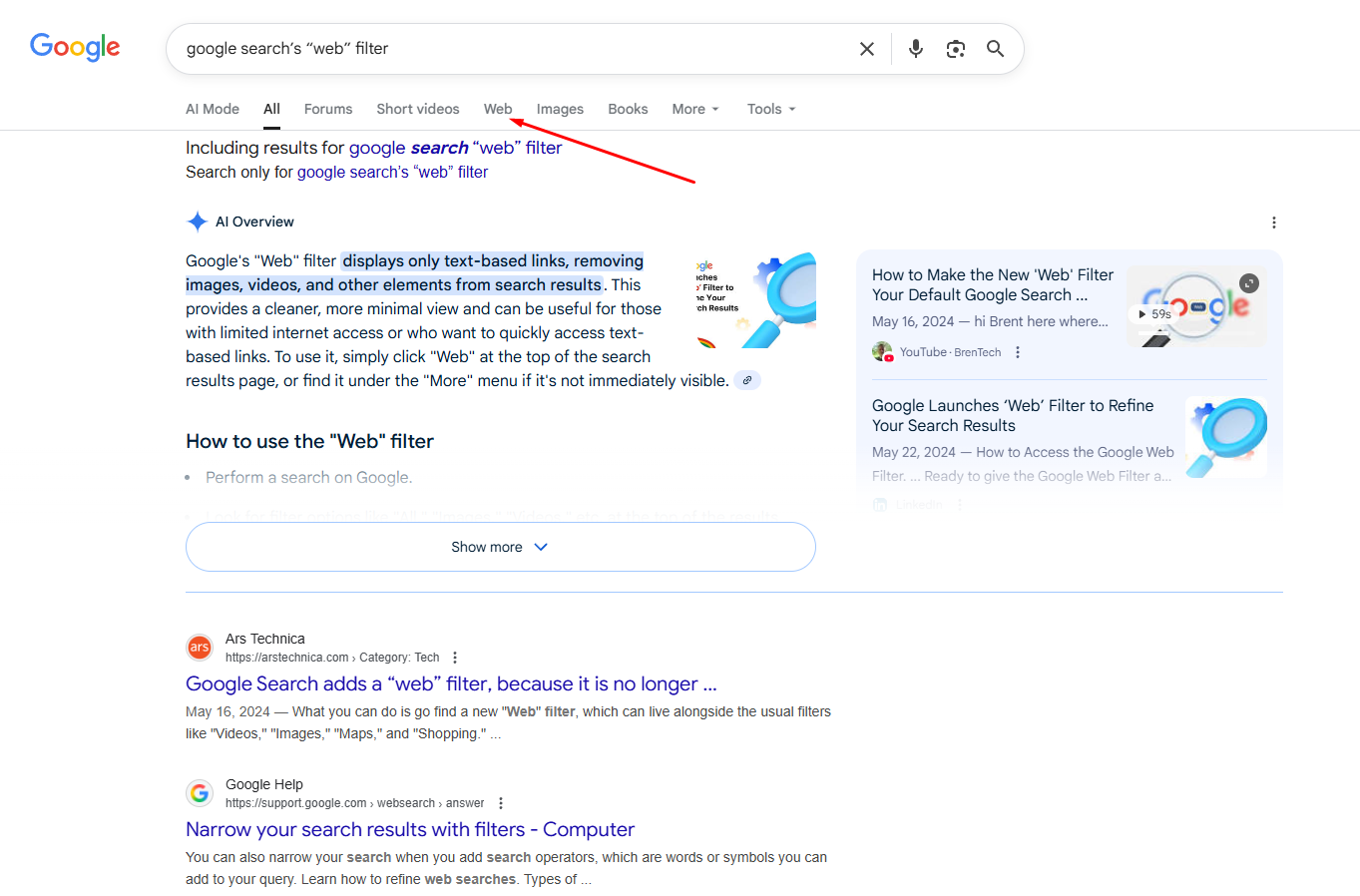
Google Search’s “Web” filter is a convenient option for users who desire to exclusively access regular web results and bypass AI Overviews. You can get to it now by doing a search and then clicking on the ‘Web’ tab at the bottom of the search box. This filter is one of the easiest ways to reduce AI overviews, particularly for fact-based questions where users have indicated that AI contributes minimal value.
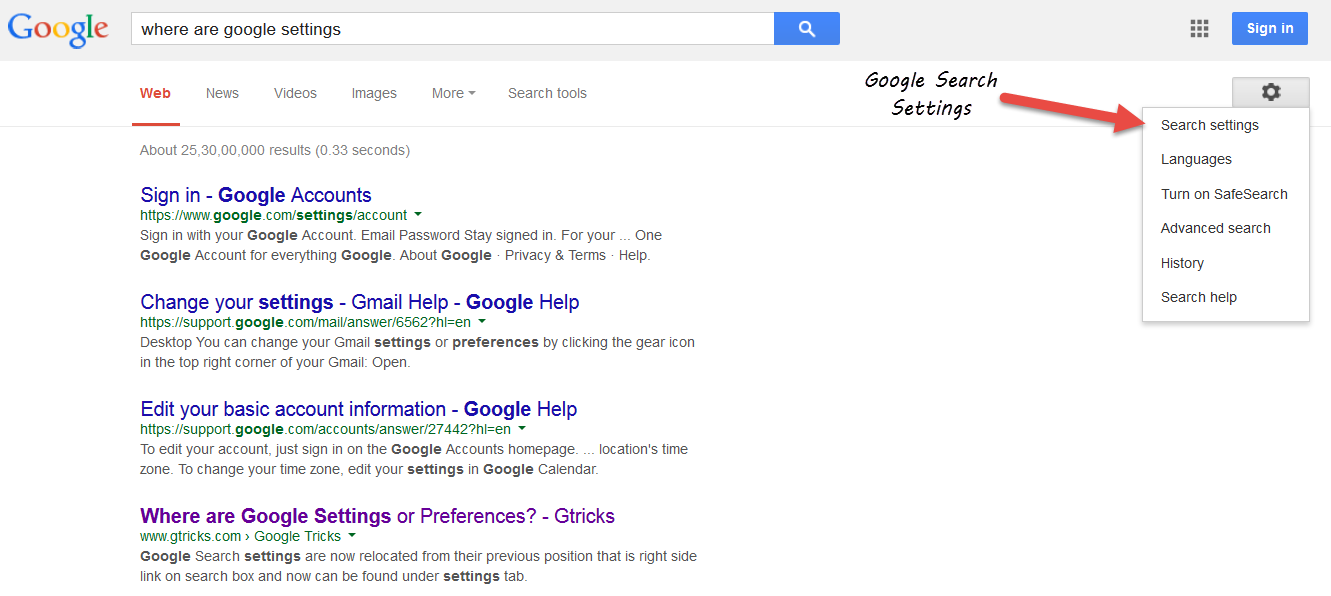
If you want greater control, enter Google’s search settings. On desktop, click ‘Settings’ at the bottom right of the search results, then choose ‘Search settings’. From here, you can customize what you view and filter to your liking.
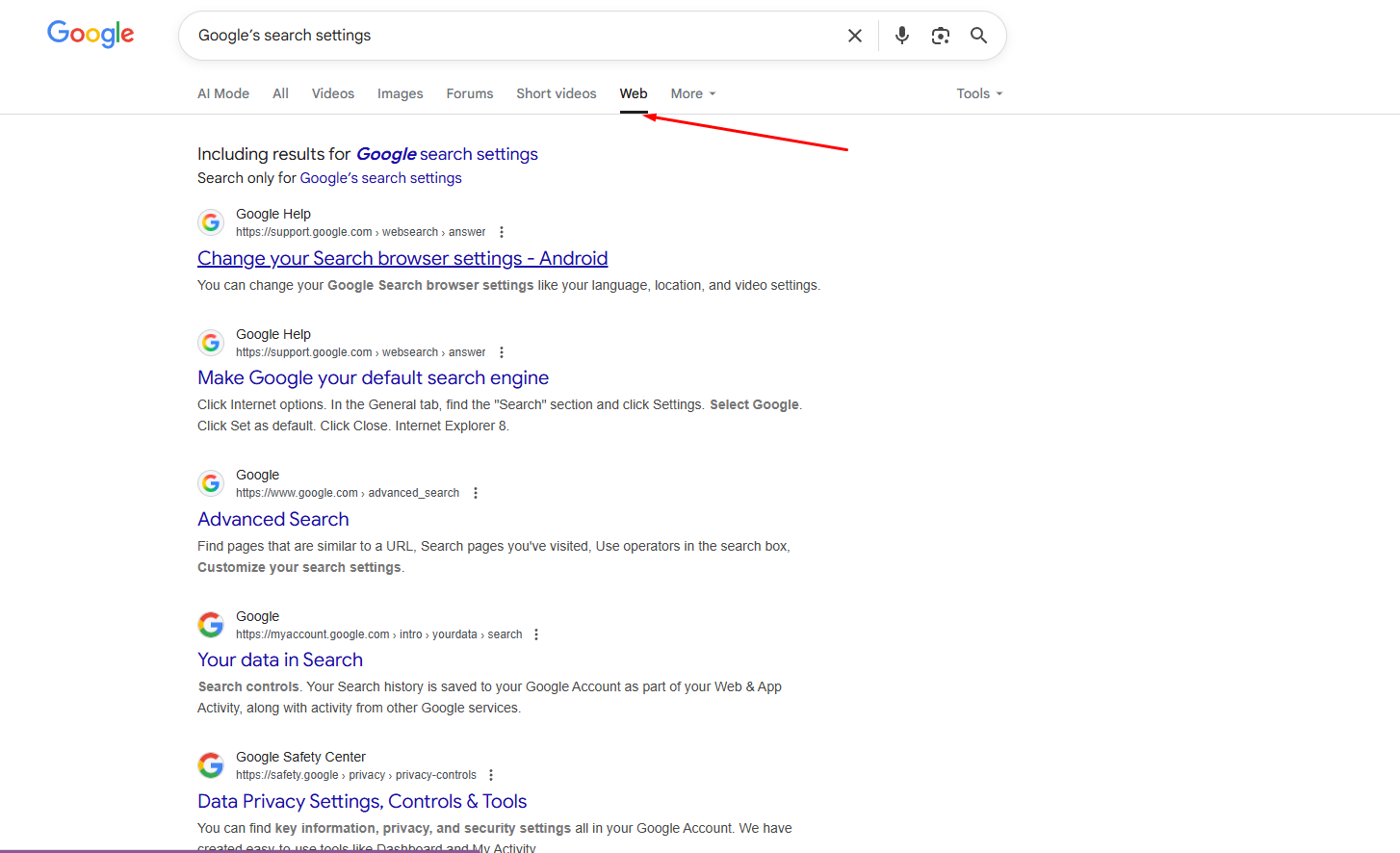
The ‘Web’ filter isn’t flawless. Occasionally, it continues to display snippets or covers at the top. Experiment with various combinations of filters to find what suits your workflow. A few users have reported better experiences when they customize these options. Give it a few minutes of play. You may be surprised how much more focused your searches seem.
2. Browser Extensions

Browser extensions are a powerful way to disable AI Overviews. UBlock Origin is a popular example, used by thousands who want a cleaner Google Search. It can be added from the Chrome Web Store or Firefox Add-ons, after which readers can activate AI section-hiding filters for search pages.
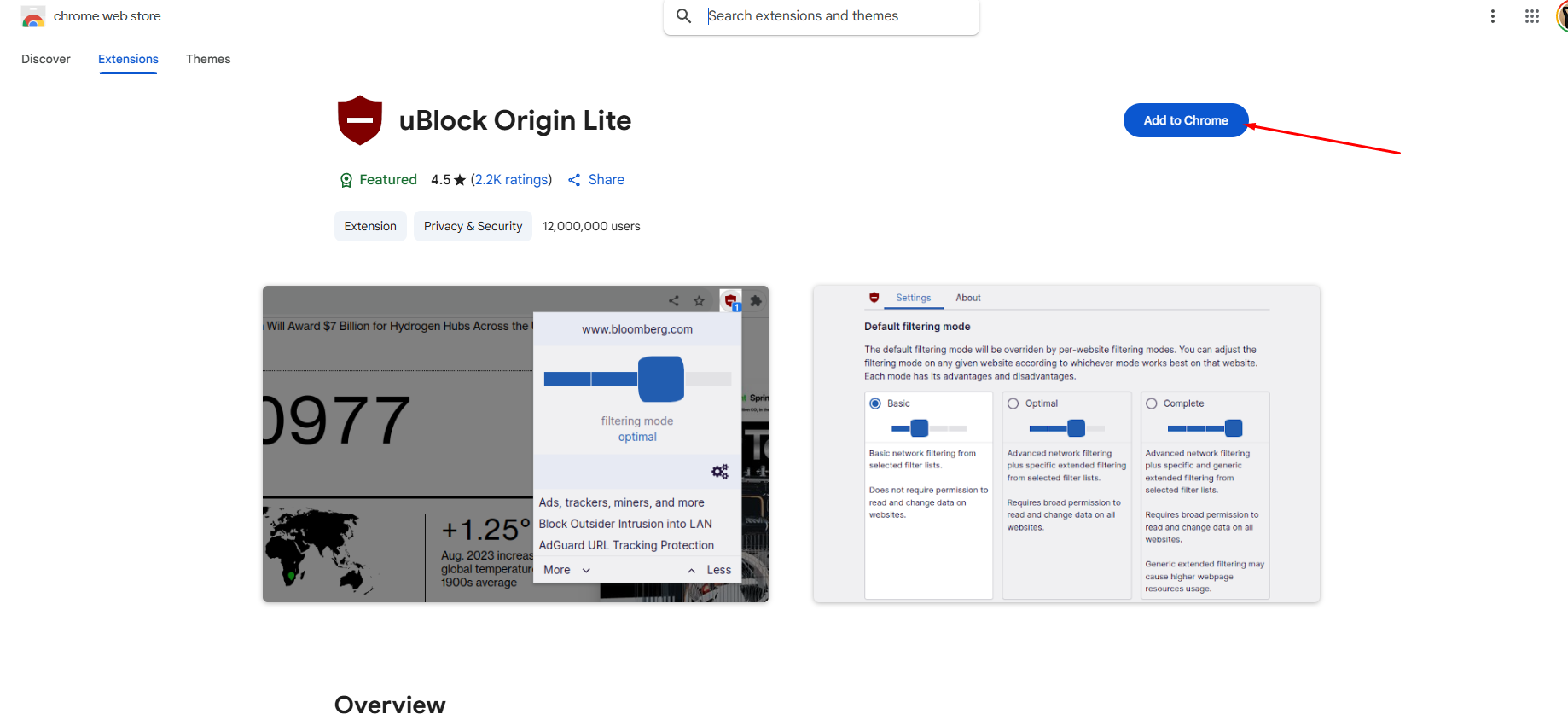
Installing an extension is simple. Search for the extension, click “Add to Chrome” (or Firefox), and follow the prompts. Once installed, go to the extension to add or enable filters for Google’s AI blocks.
Extensions assist by eliminating clutter and allowing you to concentrate on genuine web outcomes. This can save time and frustration, particularly for professionals who run a lot of searches each day. Keep your extensions updated, though. Google changes its layout often, so updates are key for keeping these tools working.
3. Custom Ad-Blockers

A custom ad-blocker filter is another way to block AI Overviews. With AdGuard or custom uBlock Origin rules, you can even control which elements get hidden. For example, you can write a custom filter aimed at the CSS selectors Google applies to AI Overview boxes.
In AdBlock, for example, you open your ad-blocker’s dashboard, click “My Filters,” and paste in the custom rule. Try your filter on Google and see if the AI Overview disappears. If you run into problems, online forums and Reddit have common filter lists that you can import.
4. Search Operators
Search operators are little commands you stick onto your query to modify what results you receive. For instance, typing a specific character—like “site:” or using quotation marks—can help you skip AI Overviews. Others, meanwhile, preface their query with a dash or period to dodge AI tools. Experimenting with alternative search engines can also enhance your efficiency.
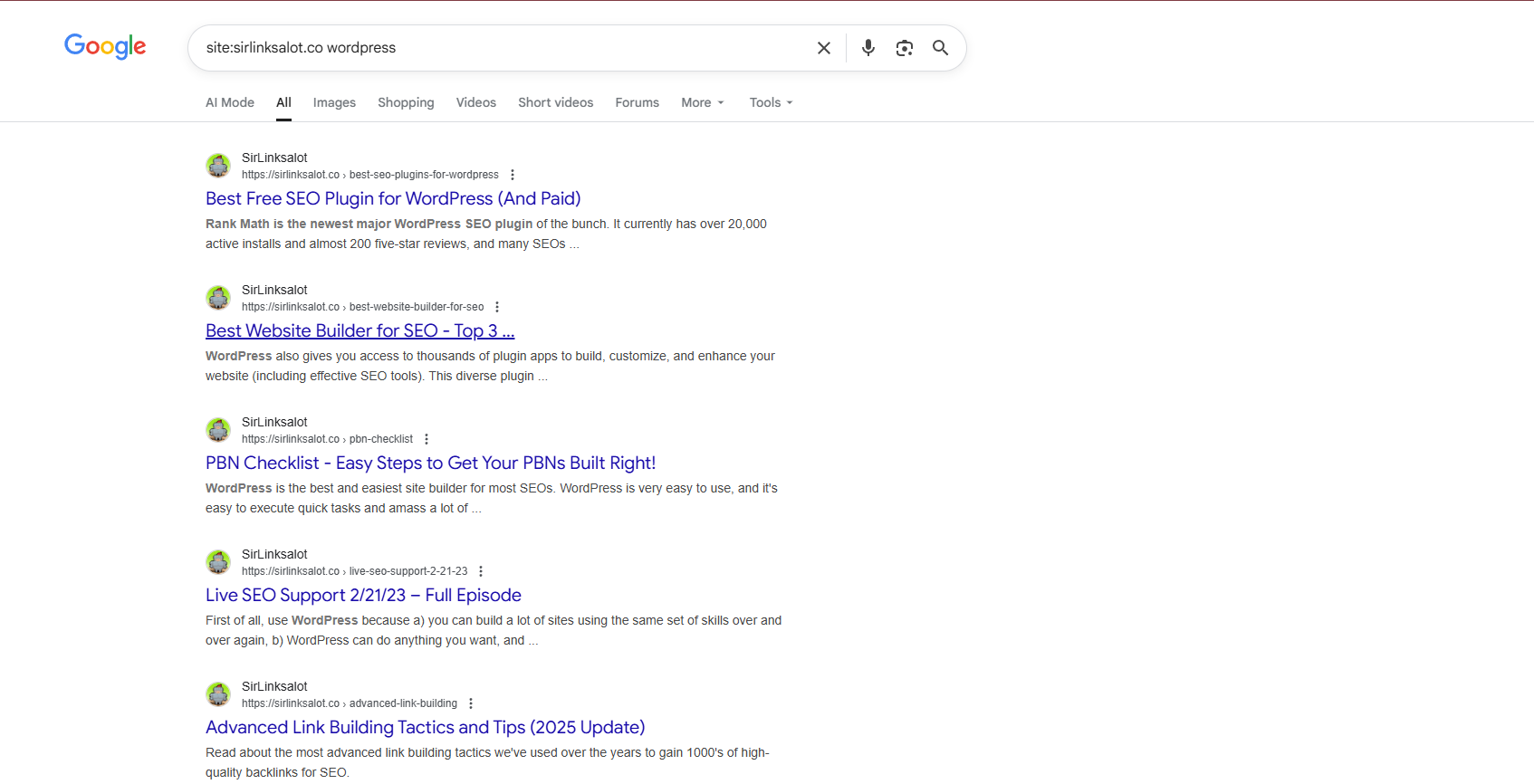
For example, searching for site:example.com skips summaries and goes straight to the site’s search results. Quotations force Google to match exact phrases, which makes it less likely that AI Overview will come up. The ability to use a custom search engine can greatly improve your experience.
Experience helps. The more you use operators, the quicker you will become at locating what you need. Learning search operators is an excellent skill for digital marketers and SEO professionals who need to work smarter, not harder.
Mobile Device Solutions
On mobile devices, there are more options for customizing your experience with Google Search, including the ability to disable AI Overviews. Regardless of whether you’re on an Android or an iPhone, both platforms provide methods to disable or partially restrict these AI-enabled functionalities. For some, they want a less cluttered search page; for others, they simply enjoy simplicity and privacy.
Here’s how it essentially works, along with an explanation of why techniques can seem inconsistent from phone to phone.
- Open Google app settings and look for “Search Features.”
- Disable AI Overview if available.
- Switch the default search engine in your browser or device settings.
- Explore different browsers or non-AI search engines.
- Mobility solutions.
- Request the desktop site in your mobile browser for a different layout.
- Remove or deactivate Google app updates that inject AI features.
- Explore privacy-focused third-party apps or browser extensions.
Android Methods
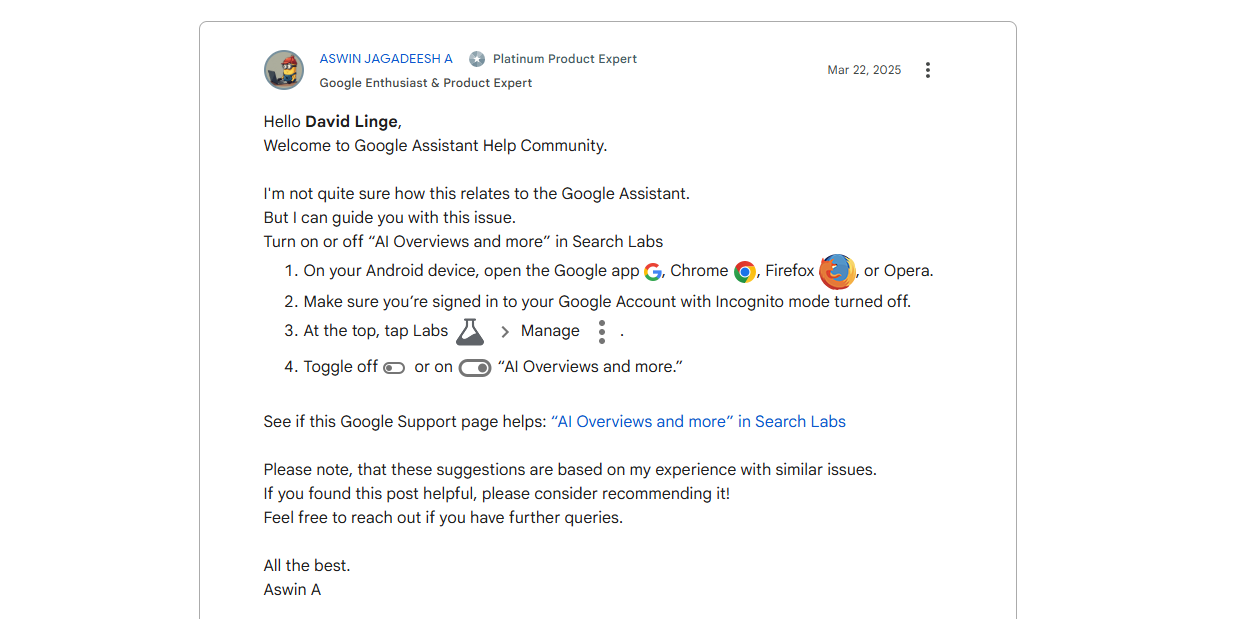
Open your Google app and navigate to its settings menu. Scroll down until you reach “Search Features.” If your edition allows, turn off AI Overviews. Not all versions have this toggle yet, but it’s worth checking out.
For some, removing recent Google app updates can assist since older versions likely won’t drive AI content as hard. You can even disable the Google app itself if you mostly search through Chrome or another browser.
Changing your default search engine makes sense. Change your default search engine to something like DuckDuckGo or Startpage, which don’t provide AI results. This provides some relief from Google’s AI.
Certain Android browsers allow you to configure custom search engines, enabling you to bypass the AI Overview entirely. Appending “&udm=14” to your search URL is a hack that works for some, and if you select the desktop site, it will sometimes load the old UI without the AI snippets.
iOS Methods
Google app settings on iOS work a little differently. Fire up the Google app, tap your profile, and head to “Settings.” If there’s an AI Overviews toggle, turn that off. Not every user sees this yet, but it’s in a phased rollout.
For iPhone users seeking more control over their browsing experience, utilizing alternative search engines like Safari can be beneficial. In Safari, you can customize your default search engine in Settings > Safari > Search Engine. Opt for one that aligns with your preferences—perhaps one that avoids AI tools entirely.
Search in private mode, keep in mind that this won’t block AI Overviews consistently. Others say they have had better luck with third-party browsers or privacy apps.
Keeping your iOS up to date is essential, as updates often include new AI developments and security patches that enhance your overall search experience.
Search Experience Impact
AI overviews have transformed our Google search results experience, particularly for SEO experts and agencies in America. These AI tools are now front and center, frequently driving down organic results and altering user search queries. If you’re in digital marketing, the ripple effects are impossible to miss.
Result Quality
| Pros of AI-Generated Content | Cons of AI-Generated Content |
|---|---|
| Quick, concise answers | May lack depth or nuance |
| Useful for simple, factual queries | Prone to errors or outdated info |
| Often cites sources | Limited number of clickable sources |
| Saves time on basic questions | Can push trusted organic results down |
The transition to AI content has transformed initial search results, with almost 40% of AI queries resulting in a zero-click outcome. This indicates that users receive immediate answers without needing to click through to websites, showcasing the impact of alternative search engines.
Page Speed
AI Overviews might lag a little when loading pages, particularly on hectic days or with those sluggish Texas connections. The AI-enhanced options load additional content and scripts, adding seconds to a search.
This becomes a trade-off where more advanced features compete with a snappier experience. Fast-search-dependent users, like local business owners and marketers, could observe a delay.
You can browse faster by disabling features or tweaking browser settings if speed matters more to you than new AI tools. Periodic speed tests could help flag when AI features begin to bog down performance.
User Control
Pushing for more user control over AI features is essential for an improved search experience. Customizable search settings let users pick what fits best for their needs, whether that is turning off AI Overviews or tweaking how results display.
For agencies, asking your clients to submit feedback or test new settings can influence how the AI evolves in search. By giving users a voice, it benefits us all and makes search tools useful rather than annoying.
Your Data Privacy
Understanding how your data is utilized when using Google AI Overviews in search queries is crucial for any SEO consultant or agency. With the rise of alternative search engines, industry insiders are cautious, with some advising to disable AI Overviews altogether to protect sensitive data. As these AI tools become more prevalent, it’s wise to comprehend what’s gathered and how it impacts privacy.
• Types of data collected:
- Search queries and browsing activity.
- Device information (IP, browser, location).
- Cookies, Flash cookies, web beacons, web logs.
- User-submitted content, options, and survey answers.
- Payment and transaction information.
- Third-party data.
• Implications include:
- Detailed user profiles for targeted ads.
- Cross-site behavioral tracking.
- Aggregation with other personal information.
Data Collection
Google gathers a ton during each AI Overview interaction—your searches, device info, cookies, even location. These specifics assist Google in providing speedy, customized outcomes. They are obtained and connected to your account or transmitted to partners.
This depth of data collection increases the breach risk and facilitates advertiser tracking of your digital footprints across the web. Not everyone is cool with that. A lot of users feel that it’s not transparent enough, particularly because AI Overviews can shift how you view search results and what’s stored about you.
Future of Search
AI is transforming how people search for information, and it’s obvious that the next few years won’t resemble the old blue link era. Generative AI, such as Google’s SGE, places rapid summary-style answers front and center. Not everyone is convinced.
A few users in the U.S. (and here in Austin, where tech and privacy often stir-mix) yearn for vanilla, the classic, cleaner look minus AI boxes or tracking. They want control, privacy, and a way to proactively turn off AI summaries, often via browser extensions, open-source tools, or even other engines to return to basics.
There’s a big demand for people-first search tools, with plenty of options to personalize it and toggle between AI and classic results. As search morphs, user voice and habits will be a huge influence on what’s next.
The Toggle Debate
- Provide users an easy means to choose between AI and traditional search results.
- Don’t obscure or bury the ability to disable AI summaries.
- Do explain what each mode does so users know what to expect.
- Don’t shove AI answers down their throats if they want links or if they want privacy.
- Back feedback and community input on new search features.
- Don’t discount the craving for a ‘classic mode’ or cleaner layouts.
Clear toggles make users feel in control, whether they want fast AI responses or the nostalgia of vintage blue links. These decisions count, particularly for SEOs and marketers concerned about losing traffic to AI snapshots.
If Google allowed people to choose, they might retain more devoted users and discover what works. If toggles vanish, anticipate additional people to search for private, alternative searches or utilize mechanisms to remove AI layers.
User Feedback Power
Search engines change based on user feedback. If enough folks bypass or disregard AI responses, Google can and will pivot. When users speak up about wanting more privacy, fewer AI boxes, or better summaries, those demands are heard.
It’s worth either taking surveys or leaving direct feedback when things don’t feel right. The more Google and others observe these trends, the more quickly they can adjust features or redesign.
Community voices, particularly from SEOs, agencies, and techies, mold the products that we all use. Never underestimate the strength of a little feedback.
Evolving Interfaces
We keep switching up search interfaces. Now you receive snapshots, conversational threads, product carousels, and even video or AR overlays—all driven by AI. These new faces seek to simplify searching.
Not everyone appreciates or finds them precise. So the most useful thing users can do is to get comfortable with change, experiment with new layouts, and share what does or doesn’t work.
Some people will always want a bare bones, traditional search, while others may prefer the enhanced, AI-optimized results for speedy responses or shopping. Search engines will probably continue to experiment with the concept, perhaps even allowing users to choose their mode for specific tasks.
The future seems more personal, more visual, and if users insist, more flexible.
Conclusion
At the end of the day, Google users just want fast, clutter-free results that get straight to the point. Many, especially in places like Texas and beyond, prefer the classic search layout — simple blue links without AI summaries getting in the way.
Turning off the AI Overview helps keep your searches clean, quick, and easy to navigate, so you can find what you need without the extra noise.
If you want to stay ahead of the latest Google updates, SEO strategies, and ranking changes, reach out to the team at SirLinksalot — we’ll help you keep your searches (and your sites) running smoothly.
Frequently Asked Questions
What is Google’s AI Overview in search results?
Google’s AI Overview is an innovative AI tool that summarizes search results, appearing at the top of certain search pages to deliver users a quick response derived from trustworthy sources across various topics.
Can I turn off Google’s AI Overview feature?
Currently, there’s no formal method to disable AI Overview in Google Search, as these snippets are automatically displayed for specific search queries on both desktop and mobile.
How can I avoid seeing AI Overviews on my mobile device?
To escape the Google AI overviews, consider using alternative search engines, private browsing, or searching within specific keywords to enhance your search queries.
Does AI Overview affect the accuracy of search results?
AI Overviews aim to deliver quick responses, yet they may lack the precision of conventional search results from alternative search engines. Always scroll down for trustworthy sources.
Is my search data used to improve Google’s AI Overview?
Yes, Google utilizes search data and user interactions to enhance its AI capabilities, including Google AI overviews. Your activity could assist in improving the AI tools that refine responses over time.
Will Google let users disable AI Overview in the future?
Google hasn’t announced any plans to allow users to disable AI Overview, a feature that enhances search queries. As it evolves, additional options may emerge based on user feedback.
How does AI Overview impact my search experience?
AI Overview can simplify getting fast answers. It could alter the way you engage with search results by emphasizing summaries rather than displaying full links up front.