Key Takeaways
- The use of the minus sign (-) in Google searches is a small but powerful technique for excluding words or phrases that you don’t want in your results, and it’ll save you time and frustration!
- By putting the minus sign right in front of a word with no space, you’re telling Google precisely what you want to exclude — so your searches are more on target.
- By excluding multiple words, phrases, websites, or file types, you can rapidly drill down to what’s really relevant, whether you’re shopping, hunting for recipes, or dodging spoilers.
- Be careful, because over-excluding can backfire by overly limiting your results, so balance and double-check your query spelling!
- A little practice with these exclusion methods can make your daily searches—from hunting down the perfect product to finding just the right news—speedier and more fun.
- Taking a mindful approach to search intent and exclusions allows you to discover what you’re looking for while maintaining broad coverage.
Ever typed something into Google, only to get results cluttered with things you don’t want?
Good news—you can fix that. With a few simple tricks, you can exclude specific words from your Google search and get results that actually matter to you.
In this guide, we’ll walk you through the exact steps (super easy, promise) so you can save time, cut through the noise, and find exactly what you’re looking for.
The Exclusion Operator
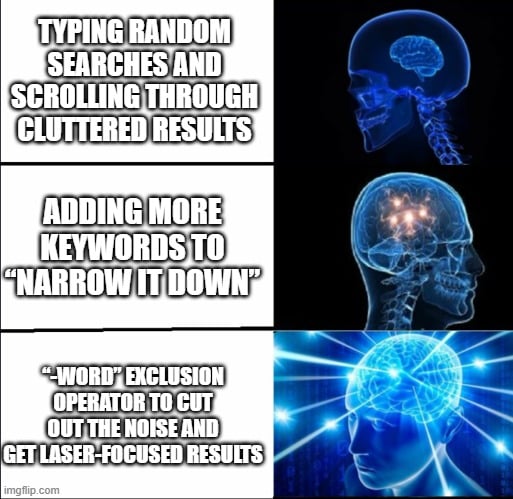 The exclusion operator is a handy way to focus Google search results and eliminate unnecessary clutter. With a straightforward dash, you can exclude specific words from your search, keeping your searches on-point and targeted — which is important in this digital marketing/SEO world where both time and information quality are at a premium.
So, whether you’re looking for the hottest SEO buzzword in Texas or trying to filter news and images for a client campaign, this exclusion can make it a whole lot easier.
1. The Minus Sign
 A minus sign, in front of a word, instructs Google to omit results containing that word. So, looking for
 best laptops -HP excludes all pages with HP laptops—really nice if you want to avoid big brands and view smaller Texas stores. You can use multiple minus signs, such as:
-
healthy dinner recipes -chicken -beef,
And your results will exclude chicken and beef dishes.
This is great for news, images, even shopping — fantastic for any kind of search. Trialing various words with minus signs shows you how your results vary.
For instance, search Austin events -music -festival to eliminate the music festivals and discover some smaller events occurring nearby.
The minus sign allowed you to dig a bit deeper, uncovering information that gets lost in the shuffle under all the popular stuff. Once you get the hang of it, you’ll move faster through SERPs and notice possibilities rivals may overlook.
2. Correct Placement
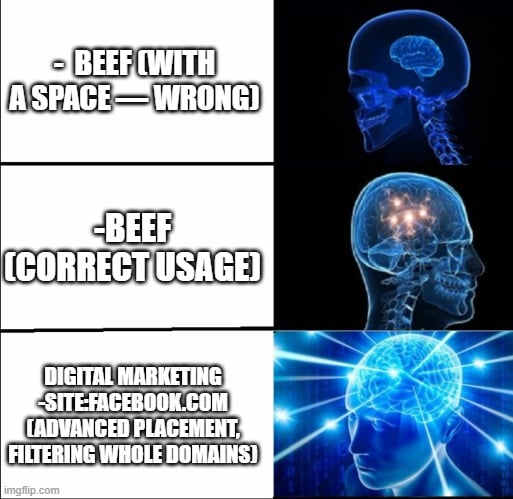 The minus sign functions only when it’s immediately adjacent to the word—no space.
 -beef is correct, but - beef will fail. Check your spelling and positioning, particularly if you’re excluding multiple words. This detail counts because a mistyped sign can cause Google to overlook your operator, providing cluttered results once more.
Try changing your search format a little. Put the minus sign before words, before phrases in quotes, or with site: to filter out whole domains.
For example, digital marketing -site:facebook.com keep Facebook off your radar.
Knowing precisely where to place that minus sign is the key to keeping your searches cutting.
3. Common Mistakes
Many people mess up by inserting spaces between the minus sign and the word. Every time you do, Google interprets the minus as a dash, not an operator. If you’re dealing with a lengthy list, it’s tempting to go crazy excluding and end up missing good stuff.
Excluding too many terms can trim your results down to almost zilch, so keep it balanced. Verify your method if your search comes up blank or appears odd. A fast browse will save time and get you closer to what you actually desire.
Beyond Single Words
Search engines are a great thing, but now and then, you have to cull the noise. A few dozen tips later, you’ll be taking your Google search skills beyond removing single words — and finding the content you actually want to see, particularly when wrestling with broad topics or attempting to escape a particular source. Mastering phrase and multi-term exclusions allows you to guide your searches with more precision.
Exclude Phrases
Quotation marks allow you to specify to Google that you want it to treat a series of words as a phrase. If you want to dodge results about “budget laptops” when searching for new computers, you’d enter: best laptops -“budget laptops”. This causes Google to disqualify any page containing those two words adjacent to each other, not just “budget” or “laptops” separately.

It complements other search trickery. Try combining it with site exclusions, like best laptops -“budget laptops” -site:amazon.com, if you’re hunting for good tech reviews but want to skip big retailers. It’s a convenient method to eliminate duplicate sponsored content that loves to clutter the top listings, especially if you’re in Austin and looking to shop locally or slough off the boilerplate recs.
Phrase exclusion keeps you focused on what’s important. If you’re doing research, like finding local music venues in Texas but want to avoid “chain venues,” then you can keep your results local and relevant without wading through extraneous listings.
Experiment with various catchphrases. Occasionally, re-arranging word order or using brief phrases, produces superior effects. Search operators are an adjustment, but the reward is in your result quality.
Advanced Exclusions
Advanced exclusions allow you to focus on what’s important, eliminating clutter from large sites, unrelated documents, or all the rehashed information. For SEO whizzes in Austin or across the States, understanding these hacks ensures you receive results that match your task—quick, transparent, and tailored to your requirements.
|
Technique |
Example Query |
Benefit |
|---|---|---|
|
Basic Exclusion |
tacos -recipe |
Removes unwanted terms |
|
Phrase Exclusion |
“Austin events” -“live music” |
Filters out specific phrases |
|
Site Exclusion |
BBQ -site:yelp.com |
Avoids results from certain sites |
|
File Type Exclusion |
marketing plan -filetype:pdf |
Skips certain files, targets others |
|
Wildcard Exclusion |
best * in Austin -tourist |
Broadens search, then filters |
|
Combined Operators |
site:.edu -filetype:docx “SEO tips” 2020..2024 |
Narrows results with layered filters |
With Site Search
Using -site: is a simple way to cut noise and get fresher perspectives. Tired of Yelp crowding your taco searches? Try: tacos -site:yelp.com
Now you’ll see blogs, news, and local forums instead. It works for research too—like checking google update -site:blog.google to get viewpoints beyond Google’s own spin.
Site exclusions help you save time, skip bias, and uncover voices that big platforms usually bury.
With File Types
- Exclude PDFs: -filetype:pdf
- Exclude Word docs: -filetype:docx
- Exclude PowerPoint: -filetype:ppt
- Exclude Excel sheets: -filetype:xls
- Exclude text files: -filetype:txt
Use -filetype:pdf if you want fresh web results, not old uploads. If your client’s industry news dominates over the how-to’s in DOCX or PPT, block them. Sampling different file types helps you discover what content types bubble to the surface when others are stifled.
When you want just HTML pages—like for technical audits—filtering out file types limits the scope. Play around with these filters to identify what types of content rule your niche and create outreach plans that make more sense.
With Wildcards
Wildcards are the ninja weapon for SEO research! Plug an asterisk (*) into your search to replace any word. If you want to discover the best tools or agencies in Austin but keep getting “tourist” suggestions, search best * in Austin -tourist.
That takes down travel pieces, enabling biz or tech posts to rise. Wildcards team-up with exclusions for power moves. Try SEO * checklist -filetype:pdf to dodge endless downloadable checklists and get more blog posts or infographics.
They’re nimble, allowing you to leave doors open while still eliminating crap. Playing with wildcards in conjunction with exclusions reveals patterns you’d otherwise overlook.
You can identify new keyword combinations, discover holes in your client’s coverage, and even get sparkled for new blog post ideas. They’re ideal for unearthing long-tail terms or discovering what’s hot in your town.
Combine Operators
Piling on operators turns you into a search ninja. Try BBQ -site:yelp.com -filetype:pdf “2024 review” to skip Yelp and PDFs, and focus on fresh reviews from blogs or news sites.
Looking for just .edu domains and no DOCX files? Use site:.edu -filetype:docx. You can even set a money range: camera $100..$500 -site:amazon.com.
Combining exclusions with quotes, ranges or domains allows you to carve out results exactly as you need. It’s an essential for SEO audits or deep-dive research–believe me, you’ll never return to vanilla searching.
Everyday Applications
Exclusion tricks in Google search assist people in reducing time and go straight to the data they really prefer. Regardless of whether you’re e-commerce shopping, scouring for recipes, or avoiding spoilers, these techniques tune your searches and compel search to serve you—not vice versa.
Used correctly, you can cut the noise and discover what’s most important, quickly.
Smarter Shopping
Google exclusion is a lifesaver for shoppers who want to rule out brands or products that fall outside their criteria.
|
Scenario |
Example Search Query |
Result |
|---|---|---|
|
Skip brands |
wireless headphones -bose -beats |
All brands except Bose and Beats |
|
Filter categories |
cowboy boots -kids -women |
Adult men’s boots only |
|
Avoid stores |
running shoes -site:walmart.com |
Excludes Walmart results |
|
Target features |
laptop 16gb ram -touchscreen |
Laptops without touchscreen |
You save time by weeding out what you don’t want. Typing a minus sign (”-“) before a word instructs Google to exclude it.
When you’re gunning for a particular style or have to fend off a deluge of unrelated brands, this quick hack is a lifesaver. For instance, looking for ‘leather sneakers -adidas -nike’ trims the clutter and lets you explore choices quickly.
Misspell a word, however, and you can skew your results – so verify your query.
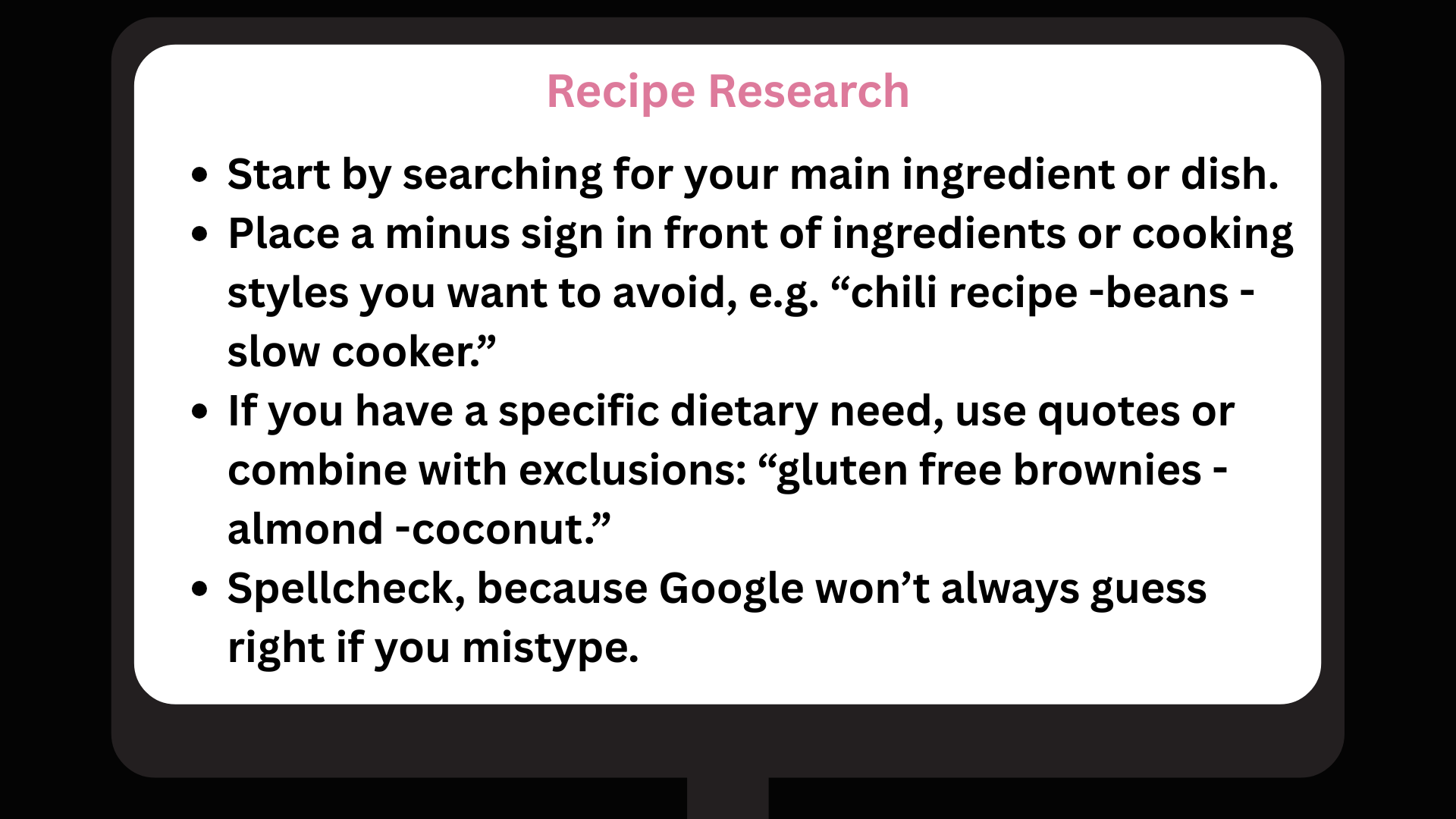
Filter by ingredients or cooking methods to discover recipes that match your taste or dietary requirements. Perhaps you adore baking but abhor coconut–by appending “-coconut” to your search, you can keep those out.
This technique introduces you to new recipes you wouldn’t have discovered on your own. It’s a method of constructing a cooking toolbox that fits you, not somebody else.
Spoiler-Free News
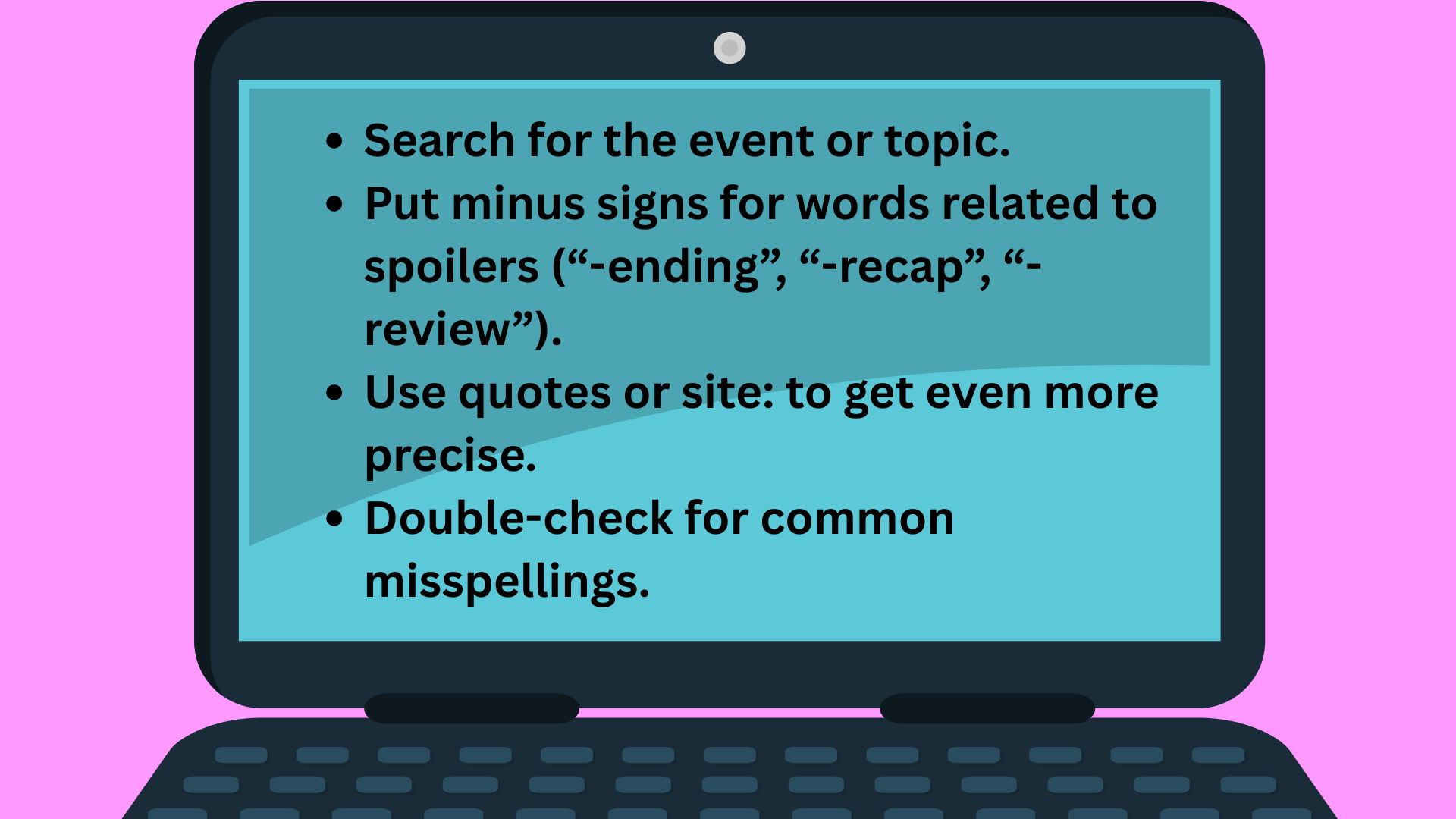
Spoiler avoidance is hard, particularly with television series or major sporting events. By eliminating a specific vocabulary, you can read news without tripping over plot twists or outcomes.
To focus your query in this way lets you enjoy your media on your own terms.
Why It Matters
Google isn’t just about finding answers—it’s about finding the right ones fast. For SEO pros and digital marketers in Austin, cutting through the noise can save hours and sharpen campaigns.
That’s where exclusions come in. A minus sign or phrase filter lets you skip irrelevant junk—whether it’s outdated posts, tool-heavy guides, or the same advice recycled on big sites. Example: link building -tools brings you fresh strategies instead of tool reviews you’ve already seen.
It’s not a gimmick. Smart search tweaks can cut research time in half, helping you focus on insights that matter for clients and strategy. Need local tips without job listings cluttering your view? seo austin -jobs keeps things on track.
Think of it as sifting gems from gravel. Exclusions give you control, surface overlooked voices, and help you deliver sharper content and smarter decisions.
Conclusion
Google can be a goldmine—or a junkyard—depending on how you search. The minus sign keeps things sharp, whether you’re hunting for tacos but not Taco Bell (tacos -bell) or chasing SEO tactics without the fluff. It’s a simple hack that cuts clutter, saves time, and helps you uncover the gems hidden in the noise.
For SEO pros, Austin locals, or anyone tired of sifting through irrelevant results, exclusions give you control over what you see. No jargon, no hassle—just results that matter.
And if you’re looking to take your search skills or SEO game to the next level, the team at SirLinksalot has your back. From practical search tips to expert link-building strategies, we’ll help you find what clicks and leave the rest behind.
Frequently Asked Questions
How do I exclude a word from Google search results?
Put a minus sign (-) immediately in front of a word you wish to eliminate. For example: best tacos -Austin will show results about the best tacos but not Austin.
Can I exclude more than one word in a Google search?
Yes. Precede each excluded word with a minus sign. For example: coffee shops -Starbucks -Dunkin.
Does capitalization matter when excluding words?
No, capitalization doesn’t matter. Google search isn’t case sensitive, so -Austin and -austin work the same.
Can I exclude a whole phrase from a Google search?
Yes. Quote the phrase after the – sign. For example: live music -“country music” removes results with the exact phrase “country music”.
Will excluding words affect local Austin search results?
Yes. If you negate a word such as “Austin,” you won’t get any Austin specific results, even if you’re browsing from Austin, Texas.
Can I use exclusions on mobile or just desktop?
You can try exclusions on mobile and desktop. The search functions identically on any device.
Is there a limit to how many words I can exclude in Google search?
There’s no official limit, but a lot of exclusions can lower the quality or quantity of search results. Apply exclusions judiciously for optimal results.