Sometimes, there will be pages on a site that are hard to find — they won’t appear in search results or the main menu. These are referred to as hidden pages. They could still exist on the internet, but unless you know precisely where to look, you’d never likely notice them.
As the owner of a website, I’ve found that discovering these hidden pages is really, really important. Why? Because they might be generating issues with security, user experience, or even SEO!
For instance, I once discovered an outdated pricing page on my site that wasn’t meant to be publicly accessible anymore — it was still live, and users were discovering it by clicking on random links!
Knowing the way hidden pages function and what sort of impact they can have, you can control your site more effectively and prevent surprises down the line.
Now, the question is, how to find hidden website pages? To locate these hidden pages, I utilize a few different tricks. So, let’s get started to find out what these tricks are!
Key Takeaways
- Hidden pages do impact SEO, security, and user experience.
- Analyze with tools such as robots.txt, crawlers, and search operators.
- Unlinked or low-traffic pages are revealed with the help of CMS plugins and Google Analytics.
- Ensure that sitemaps and website logs are checked to identify forgotten or dead-end pages.
- Ensure that regular audits are done to keep your site clean, secure, and optimized.
Why Find Hidden Pages On A Website?
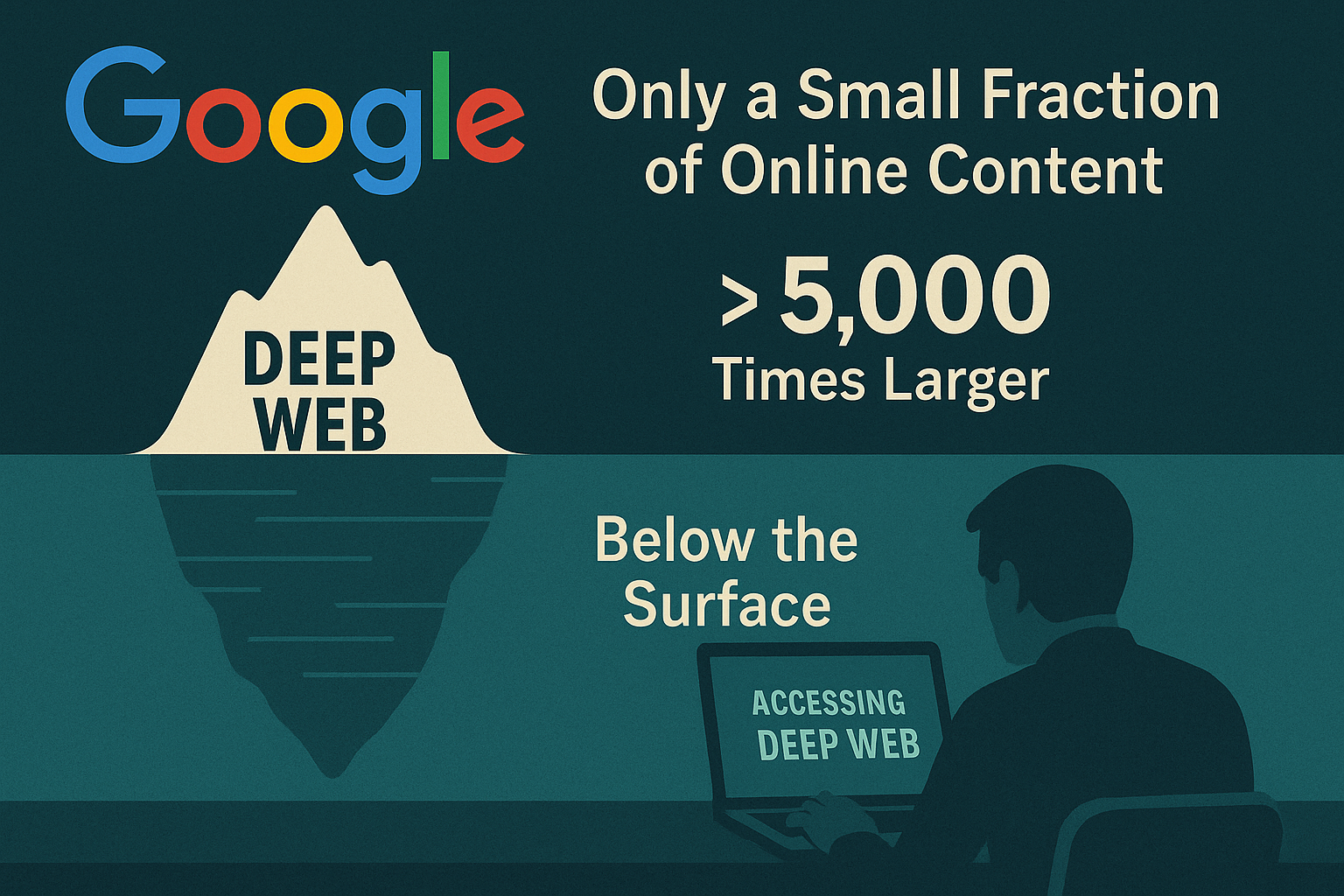
Actually, there are tons of things online that we can’t access simply by searching using Google. Like, a lot more than you’d imagine — some estimate it’s as much as more than 5,000 times larger than what appears in regular search results. This is known as the deep web, and it requires specific software to access.
Even when I’m visiting a particular site, there may still be other pages I’d never stumble upon — not because they vanished, but because they’re simply not referenced anywhere. You won’t notice them in the menu or elsewhere. They’re sort of like hidden rooms in a building — they’re there, but unless you happen to know the door is present, you’d never look for it.
Some of that unseen content goes by the name dynamic content. This means that the page won’t load until you request something in particular, such as entering text into a search bar or completing a form on the site.
With all of it being based on live data from a database, search engines like Google are unable to crawl or index that valuable information correctly.
So, if I need to access those pages, I can’t just use a search engine — I need to go directly to the site and engage with it to access what I’m after. It’s like looking in a library database rather than just browsing through the bookshelves.
Methods for Finding Hidden Pages
Discovering obscure or hidden files or web pages on a website can be helpful for SEO auditing, competitive research, and security testing (e.g., by ethical hackers). The following are valid and popular techniques for locating hidden websites:
Use robots.txt
A great many hidden pages are actually deliberately concealed from search engines with a tool called a robots.txt file. It’s essentially a way to tell search engines, “Hey, don’t see these pages.”
If you need to try this out on any website, here’s what I do: I simply enter the web address into my browser and attach /robots.txt at the end.
So, for instance, if I’m checking out “example.com,” I would visit “example.com/robots.txt.”
Look for lines that begin with “Disallow:” or “nofollow” once you’re there. Here, the owner of the website instructs Google and other search engines to ignore specific pages.
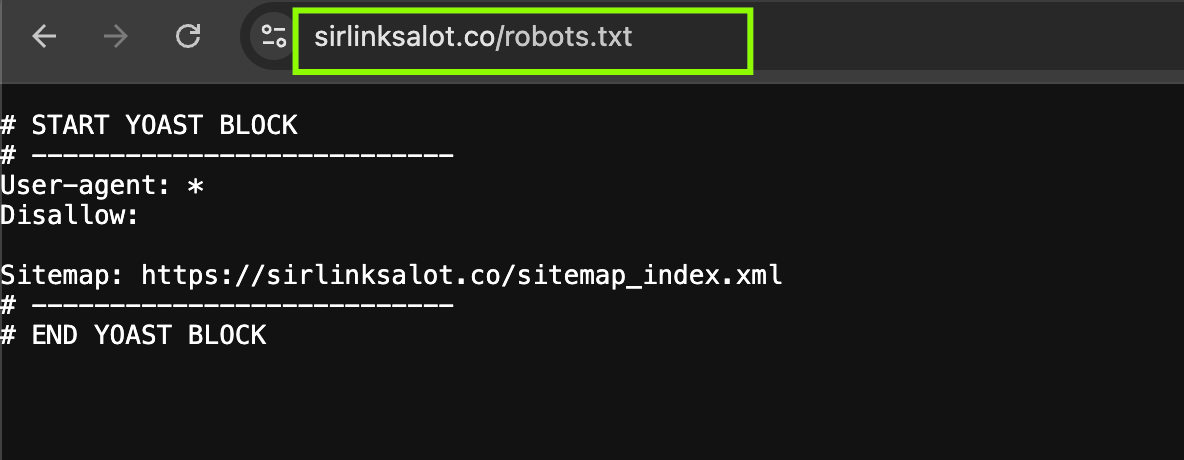
Why is this important, then? Well, search engines use links on a website to find and display pages. Similar to hiding a room behind a “Do Not Enter” sign, a website owner will list specific pages in the robots.txt file if they do not want those pages to appear in search results.
That doesn’t stop those pages from being completely locked away — if you have the precise URL, you can still visit. But you won’t happen upon them during a Google search.
I’ve used this trick a couple of times when I was attempting to figure out why some pages on my own website weren’t appearing on Google — it turned out they were unintentionally being blocked in robots.txt. So, yep, it’s a useful little file to be aware of!
Make Use Of Website Crawlers
A website crawler (a spider bot) is a software, or more like a search engine bot, that automatically goes through your site and visits every link it can.
It’s similar to how Google navigates websites to determine what to display in search results. Crawlers will expose all of your pages, including the ones that are not visible and won’t appear on your main menu or sitemap.
There are several crawlers available. Some of the free ones I’ve used include Google Search Console and Screaming Frog.
If you need more advanced ones, things like Ahrefs and SEMrush work great, though they cost money. These can identify things like orphan pages (pages not linked to anywhere else on your site) or dead-end pages (pages not linking out to anything).
Search For Hidden Directories
Certain websites also contain hidden folders that you can’t access via the menu or sitemap. These folders may contain such items as private information, test pages, or special tools that aren’t for public viewing.
If you’d like to check for these hidden folders (and you’re allowed to), experiment by adding common folder names after the website address, such as:
- example.com/admin
- example.com/test
- example.com/dev
- example.com/backup
You may occasionally come across pages you were unaware existed! However, keep in mind that you shouldn’t tamper with private pages.
Hacking Website
Did you know? It’s not that hard to hack a website. You don’t have to be an IT whiz to find hidden pages on a web page (again, only if someone is okay with you doing that!).
One easy way? Experiment with the URL in your site’s browser. Suppose you’re on a site like example.com/blog/post1.html.
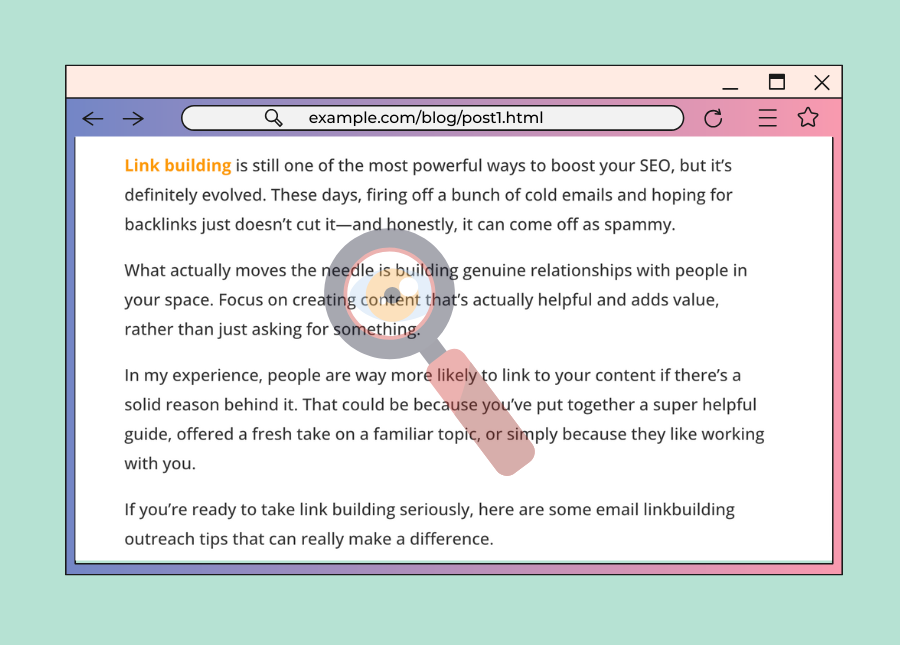
You could try deleting the end bit and simply go to example.com/blog/ to see if the entire blog folder is accessible. If the site isn’t configured to prevent directory browsing, you might find a list of other posts in that folder.
Also, if you see that there’s a pattern to the URLs, such as perhaps every post is simply “post2.html,” “post3.html,” etc., you can try to enter in alternative versions to reveal additional content.
Now, don’t go hacking or website scanning someone else’s site unless you’ve been okayed to do so. That kind of activity can get you in trouble with the law.
But if you’re testing your own site or doing a security test with permission, Burp Suite or OWASP ZAP can be useful for scanning for secret pages or vulnerabilities in how the site is constructed. The OWASP Foundation maintains an updated catalog of OWASP tools that cover the most common web application risks, so you can match a scanner to the specific vulnerabilities you’re testing for.
Find Hidden Links
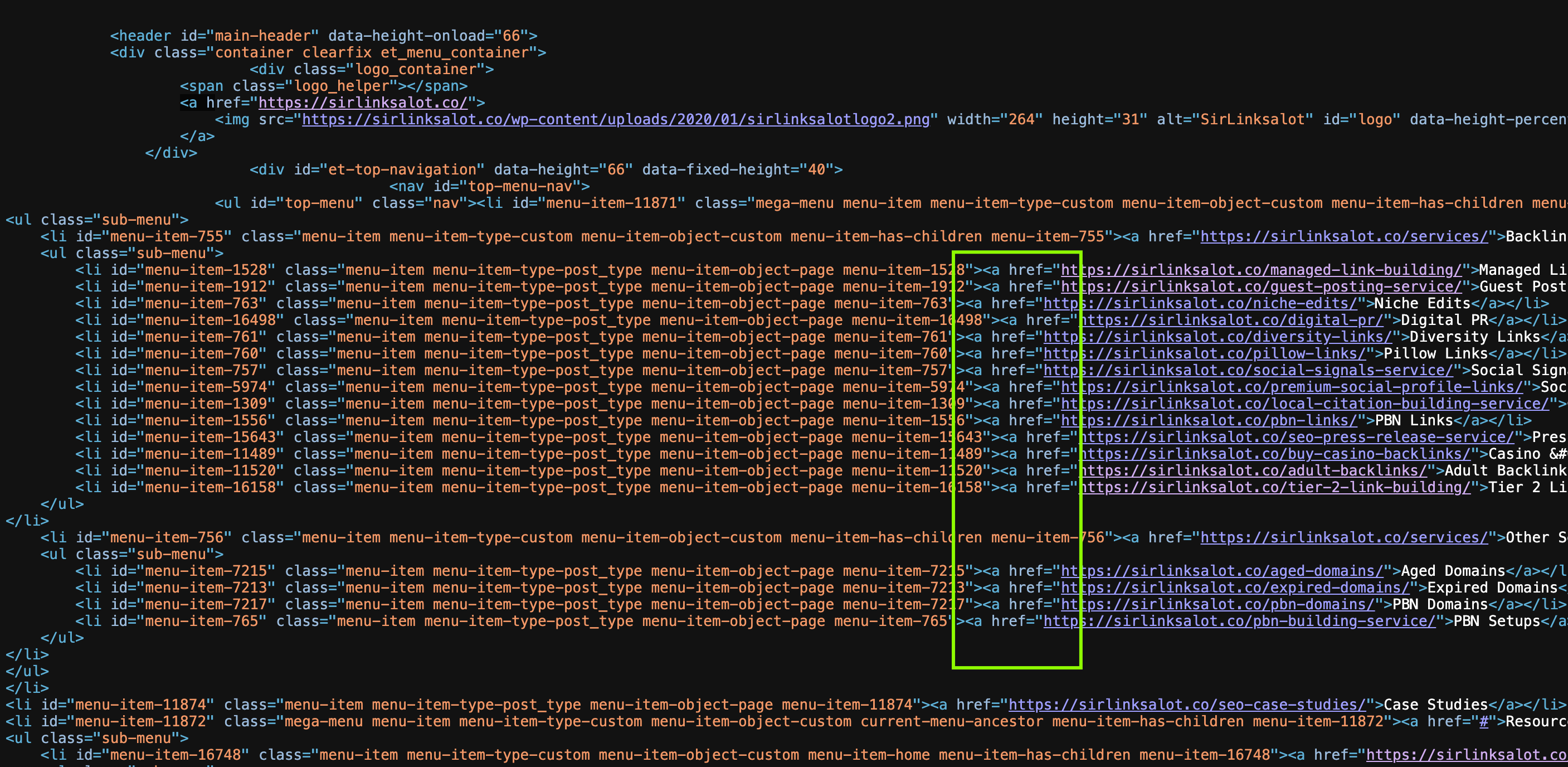
Occasionally, websites hide links that you can’t see on the page at all, but they’re there lurking in the background, hidden in the code.
If you want to verify these hidden links, it’s fairly easy. Just right-click anywhere on the page and choose “View Page Source” or “Inspect” (depending on which browser you use).

This opens up the HTML, basically the blueprint of the page.

Now browse through the code and see if you can find anything that begins with <a href= — those are the links. You may be able to find some that don’t appear anywhere on the visible site, but are still present in the code. It’s a useful trick for finding pages that are sort of “off the grid” but still exist.
Using Search Operators
If you’ve ever wished you could find particular pages or directories on a site, search operators are your best-kept secret. They’re essentially special codes you can use on Google to uncover buried or difficult-to-find pages.
For instance, if I search something like “inurl: admin” on Google, it’ll display to me pages that contain “admin” within the URL, which is incredibly helpful if I’m trying to locate login pages or admin panels (again, only ethically and for legitimate uses!).
Another popular one that I use a lot is “site:example.com.” That returns all of the pages that Google has indexed for a given website. That’s wonderful if I want to understand all that a site has to offer — even pages that may not be linked in the top menu.
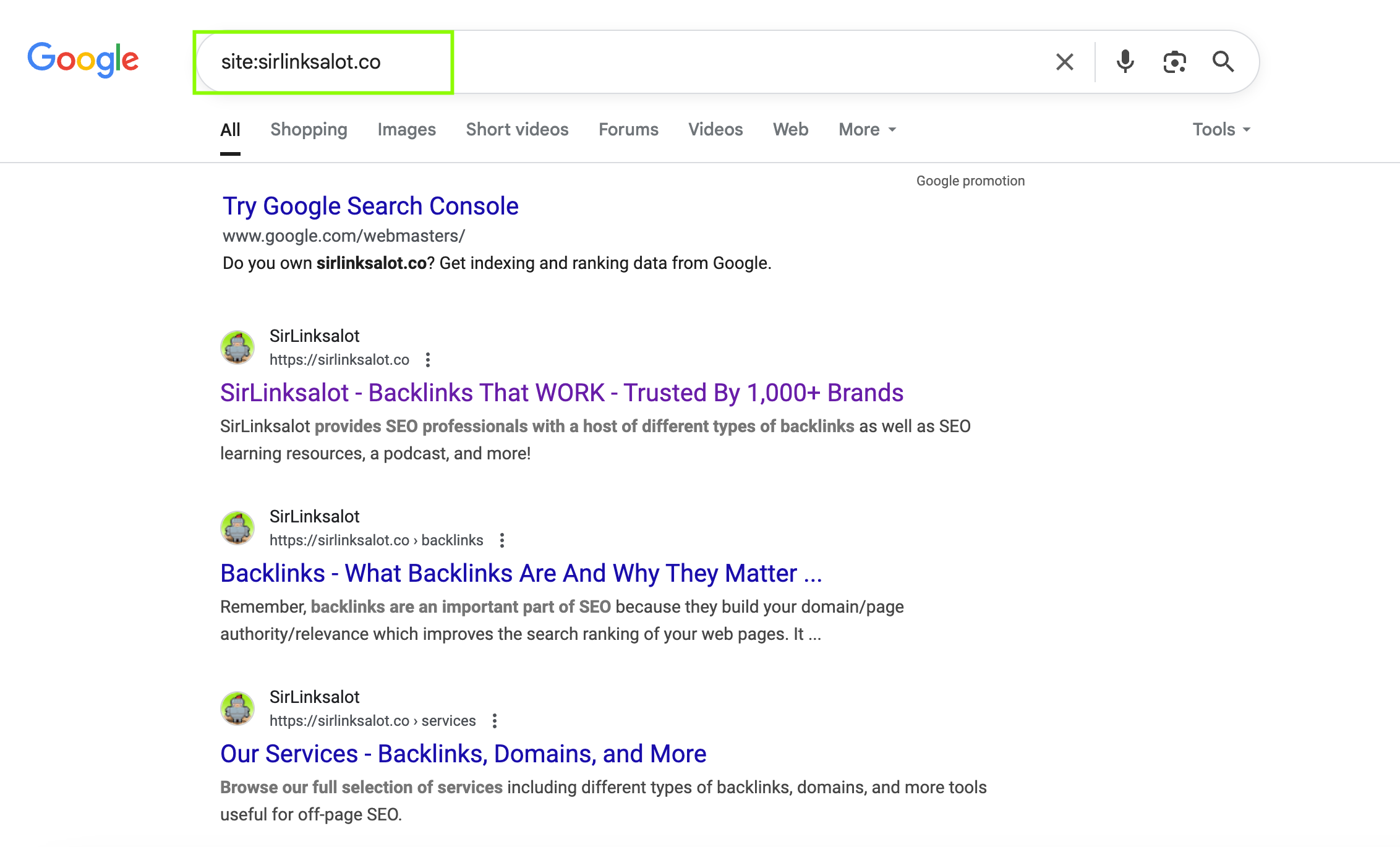
These search tips enable me to sift out the noise and locate precisely what I am searching for. Once you are familiar with them, they are a complete lifesaver for taking care of your own site or doing research on someone else’s.
Utilizing Your Website Logs
Your website logs are valuable if you’re trying to determine how many pages on your site are receiving attention, and which are being completely ignored. These logs essentially keep track of everything, including who came to your website, what pages they viewed, and how long they were there.
You can access these logs by accessing your hosting account or cPanel, and searching for something called “raw log files.” Or, if you’re using a service like Google Analytics, you can view similar data in more of a visual, user-friendly format.
When I scan my logs, I find pages that never get many visitors or have extremely high bounce/drop-off rates — those are probably hidden pages or dead-end ones that don’t link somewhere useful. They may still be live, but nobody’s actually using or finding them.
By viewing this type of data, I can tidy up my site, repair broken links, or even determine whether or not certain pages are still worthwhile.
Looking At Your Sitemap File
One simple way to discover all the pages on your site is by using a sitemap. If you already have one, then good — it’s essentially a file that contains a list of every page on your website.
If you don’t have one, don’t worry — you can find a free sitemap generator online. All you need to do is enter your domain name, and it will automatically create a sitemap for you.
I’ve used this trick a bunch of times when I’m trying to get a full list of all my pages, especially ones that aren’t linked in the main navigation. It’s super helpful for spotting forgotten or hidden pages that still exist but aren’t getting much attention.
Using Your CMS
If you’re using a content management system (CMS) like WordPress and notice that your sitemap is missing some links, don’t worry — there’s an easy fix. Most CMS platforms can actually generate a full list of all your pages for you.
For instance, within WordPress, you can simply install a plugin called Export All URLs. It will bring together a full list of all your pages, posts, and custom URLs on your site, including the ones that did not find their way into your sitemap.
I have done this myself when I found my sitemap was not displaying some older or under-pages. The use of a plugin saved me so much time versus searching out each link by hand. Super useful if you are doing a site audit or need to locate pages that you had missed even existed!
Using Google Analytics

Want a complete list of your site’s URLs directly from Google Analytics? Here’s how I get it done — no code necessary, just a few clicks and you’ll be done.
1) Sign in to the Google Analytics page.
- Go to your dashboard.
2) Go to “Behavior” → “Site Content” → “All Pages.”
- This gives you which pages individuals are viewing.
3) Go to the bottom right corner and click “Show Rows.”
- Select 500 or 1000, depending on how many pages you estimate your site has.
4) Scroll up and click “Export” (top right).
- Then choose “Export as .XLSX” (Excel file).
5) Open the Excel file and search for “Dataset 1.”
- This is where your page data is.
6) Sort the list by “Unique Page Views.”
- So that you can see which pages get the most/least visits.
7) Now tidy it up.
- Delete all the other columns and keep only the one with the URLs.
Now time to open and work on your Excel spreadsheet:
8) In the next column (let’s say column B), use this formula:
- =CONCATENATE(“http://yourdomain.com”, A1)
9) Replace yourdomain.com with your actual website. Then drag that formula down to apply it to all the rows.
10) Want clickable links? In the next column (say column C), use:
- =HYPERLINK(B1)
Drag it down once more to make it apply to all of your URLs.
That’s it! You now have a list of all the URLs on your website that can be clicked on and sorted according to actual traffic. This is very useful for audits, SEO work, or simply cleaning up your content.
Do It Manually
If you’re the site owner, a fast way to see if a page is hidden is to copy the URL of a comparable page and then modify part of it in your browser so it resembles the page you’re looking for. If it loads — bingo! If not, that page is likely hidden.
If you’re not sure which pages are missing, try organizing your site into folders (also called directories). Then, in your browser, type something like:
yourdomain.com/folder-name
This may help you in locating pages or sub-pages you didn’t know were live but not visible.
When you locate them, it’s a good practice to include them in your sitemap and request a crawl so search engines can find and index them correctly.
Also, learn how to detect hidden PBN here!
Find Hidden Pages And Improve Your SEO
Finding hidden pages on your website isn’t just a technical task — it’s something that really helps with security, user experience, and SEO. By regularly auditing your pages and using things like search operators or website crawlers, you can find those hidden or forgotten pages that might be slowing you down or leaving you vulnerable. And don’t forget — if a page has sensitive info, make sure it’s safe with password protection. Keeping your site organized and secure builds trust with users and gives your site the best chance to perform well in search results.